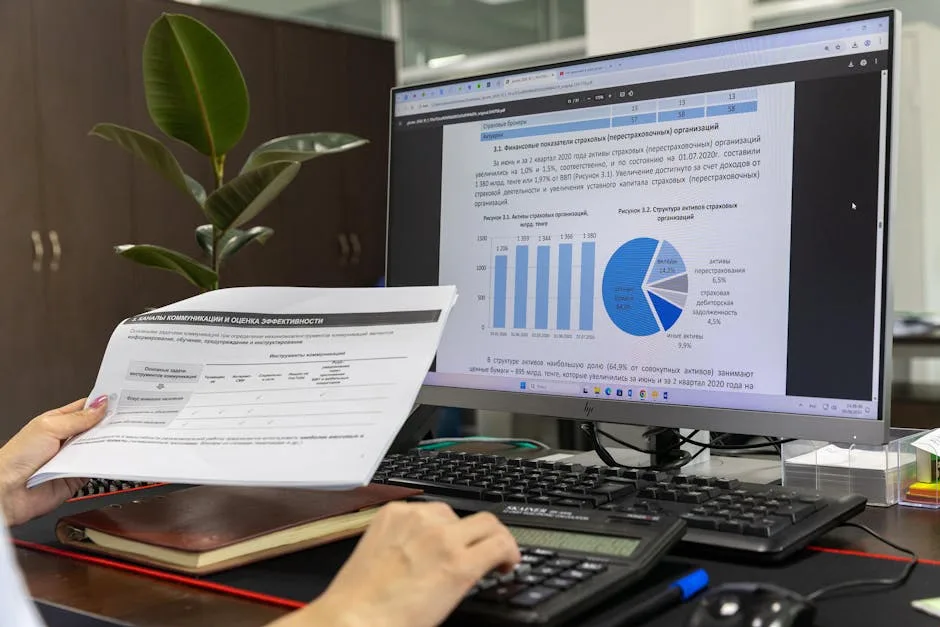
Converting Word to PDF is one of the most common tasks in the office and daily work. Whether to send a contract, deliver a report or share a resume, PDF format guarantees that the document will look exactly the same on any device. In this guide we explain how to convert Word to PDF free, step by step, without installing programs or paying subscriptions.
Why convert from Word to PDF?
Microsoft Word files .docx are perfect for editing, but present several problems when you share them:
- Fonts can change if the recipient doesn\'t have them installed.
- Layout becomes jumbled in different Word versions or in LibreOffice.
- File size can be larger than necessary.
- Anyone can accidentally edit the content.
PDF solves all these problems: the layout is fixed, the file is lighter and you can protect it with a password if needed.
Method 1: Convert Word to PDF online (faster)
The simplest and fastest way is to use our Word to PDF tool, which works directly in the browser without installing anything:
- Go to herramientasgratis.com/en/word-to-pdf.
- Click "Select file" or drag your .docx document to the indicated area.
- Wait a few seconds while the conversion processes.
- Download the resulting PDF with one click.
The process takes less than 30 seconds for most documents. The tool preserves tables, images, headers and complex formats with high fidelity.
Method 2: Save as PDF from Microsoft Word
If you have Microsoft Word installed on your computer, you can convert without leaving the program:
- Open the document in Word.
- Go to File → Save As.
- In the file format dropdown menu, select PDF (*.pdf).
- Click "Save".
You can also use File → Export → Create PDF/XPS for more options, such as optimizing for printing or web.
Method 3: Export from Google Docs
If you work with Google Docs, the conversion is also very simple:
- Open your document in Google Docs.
- Go to File → Download → PDF Document (.pdf).
- The PDF will automatically download to your downloads folder.
This option is ideal if you already have the document in Google Drive or if you work as a team.
Method 4: Use the virtual PDF printer (Windows and Mac)
All modern operating systems include a virtual printer that generates PDFs:
- Windows 10/11: Open the document, press Ctrl+P, select "Microsoft Print to PDF" and click "Print".
- Mac: Open the document, go to File → Print, click the PDF button in the bottom left corner and select "Save as PDF".
Tips to maintain format when converting
Follow these best practices so your PDF looks perfect:
- Use standard fonts: Arial, Times New Roman or Calibri ensure total compatibility.
- Review margins: Make sure the document has proper margins before converting.
- Check images: Low-resolution images will look pixelated in the PDF. Use images of at least 150 DPI.
- Verify hyperlinks: Links in Word usually transfer correctly to PDF, but it\'s worth checking.
- Use Word styles: Headers created with predefined styles (Heading 1, Heading 2...) generate a navigable table of contents in the PDF.
Is the resulting PDF editable?
PDFs generated from Word are, by default, read-only. If you need someone to be able to edit them, you\'ll need to use a PDF editor. If, on the other hand, you need to convert a PDF back to Word, you can use our PDF to Word tool.
What about very large documents or many images?
If your Word has many high-resolution images, the resulting PDF may be heavy. In that case, once converted, you can use our PDF compression tool and reduce the size without losing visible quality.
Professional tip: For presentations and formal documents, always send PDFs instead of .docx files. You project more professionalism and avoid format surprises.
Frequently Asked Questions
Is it safe to upload my Word document to an online tool?
Our tool processes files on secure servers and automatically deletes them after conversion. We don\'t store the content of your documents.
Can I convert multiple Word documents at once?
Yes, you can use our tool individually or, if you need to process many files, consider batch conversion.
Does it work with old .doc files as well as .docx?
Yes, our tool accepts both the .doc format (Word 97-2003) and the modern .docx.
Ready to convert your document?
Use our free tool and get your PDF in seconds, no registration or installation required.
Convert Word to PDF free →