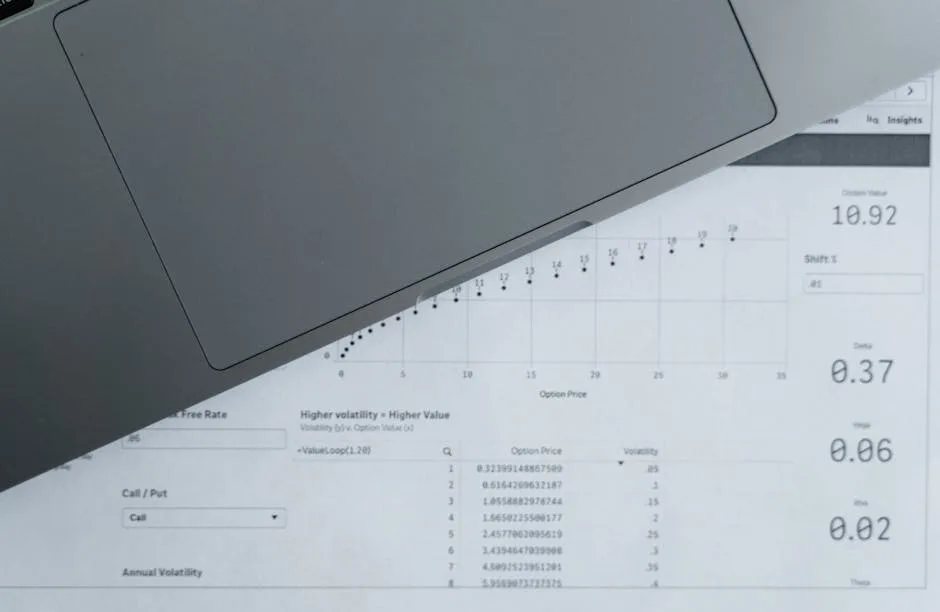
Why convert Excel to PDF
Excel spreadsheets are powerful tools for working with data, but when it\'s time to share that data — with a client, colleague, or in a presentation — the .xlsx format isn\'t always the best option. Excel files can look different depending on the program version, screen size or system configuration. A PDF, on the other hand, looks exactly the same on any device.
Also, converting to PDF protects your formulas and data: the recipient sees the results but can\'t manipulate the cells, which is essential when sharing budgets, quotes or financial reports.
Methods to convert Excel to PDF
| Method | Preserves format | Multi-sheet | No installation | Cost |
|---|---|---|---|---|
| Online tool | Very good | Yes | Yes | Free |
| Excel → Save as PDF | Excellent | Yes | No (requires Excel) | Paid (Office) |
| Google Sheets → Download PDF | Good | Yes | Yes | Free |
| LibreOffice Calc | Good | Yes | No | Free |
| Virtual PDF printer | Medium | Sheet by sheet | No | Free/Paid |
How to convert Excel to PDF with our tool (step by step)
- Access the tool: Open convert Excel to PDF in your browser.
- Upload your file: Click the upload area or drag the .xlsx or .xls file. .csv files for simple data tables are also supported.
- Configure conversion options: Select whether you want to convert all sheets or only specific ones, and define the paper orientation (portrait or landscape).
- Convert and download: Click "Convert to PDF" and download the result in seconds.
Format tip: Before converting, make sure you have the correct print areas set up in Excel. Use View → Page Layout to see exactly how the pages will look before exporting.
Common problems when converting Excel to PDF and how to solve them
Content is cut off at page edges
This happens when the spreadsheet is wider than the selected paper. Solutions:
- Change orientation to landscape (horizontal) if the table has many columns
- Adjust the scaling factor so all content fits on one page (for example, "Fit to 1 page wide")
- Reduce font size or width of non-critical columns
- Use narrower margins in the page setup
Formulas appear as #REF! or #VALUE!
If your Excel has formula errors, those errors will also appear in the PDF. Review and correct the formulas in Excel before converting.
Charts appear pixelated
Excel charts are exported as images. To ensure quality, make sure the export resolution is high. Our tool uses high-quality rendering to preserve chart and diagram sharpness.
Hidden sheets don\'t appear
By design, hidden sheets in Excel are not included in PDF conversion. If you need to include them, first show them in Excel then convert.
Handling multi-sheet documents
One of the most common challenges when converting Excel to PDF is working with workbooks that have multiple sheets. Our tool allows you to:
- Convert all sheets into a single multi-page PDF
- Select specific sheets to include in the PDF
- Maintain order of sheets as they appear in the workbook
- Add navigation bookmarks for each sheet in the resulting PDF
Preserve visual format
Format is most important when converting financial or data spreadsheets. Our tool preserves:
- Cell colors and borders: Color coding for categories, alerts or hierarchies remains intact
- Number format: Currency, percentages, dates and decimals display exactly as in Excel
- Charts and pivot tables: Rendered as high-resolution images
- Rich text: Bold, italic, font sizes and alignment are respected
- Fixed rows and columns: Column headers can repeat on each page for long tables
Professional use cases
Budgets and quotes
Convert your budget template in Excel to PDF before sending it to the client. The client sees exactly what they need without being able to modify prices or terms.
Monthly financial reports
CFOs and accountants generate reports in Excel but distribute them as PDF to ensure everyone sees the same data, without anyone being able to accidentally change figures.
Inventories and price lists
Product catalogs with prices are exported to PDF to send to distributors or publish on the web, preventing Excel data (formulas, margins, suppliers) from being exposed.
Payroll and HR documents
Payroll generated in Excel is converted to PDF before sending to employees, protecting document integrity and facilitating digital signature.
Convert from mobile
Do you have an Excel in Google Drive or email and need to convert it to PDF from your phone? Our tool works perfectly in the mobile browser. Upload the file directly from your local storage or cloud and download the PDF in seconds.
Convert your Excel to PDF now
No installation required, no format loss. Upload your spreadsheet and get a professional PDF in seconds.
Convert Excel to PDF free →